> ## Documentation Index
> Fetch the complete documentation index at: https://guide.crypto-now.io/llms.txt
> Use this file to discover all available pages before exploring further.
# Create your account
> Sign up for CryptoNow, confirm your email, and land in your dashboard — about two minutes, with no plan to choose.
Getting started takes about two minutes: create an account, confirm your email, and you're in.
**Every CryptoNow account is a Business account.** There's no plan to pick at
sign-up — you get up to 5 accounts, unlimited clients and wallets, commission
controls, API access, and e-commerce integrations from the start.
## Sign up
You can register four ways — **Email, Phone, Google, or MetaMask**. Google and
MetaMask double as your login afterwards. This guide uses email.
Head to the sign-up page, enter your email, and choose a password. The
strength meter should read **Secure** before you continue.
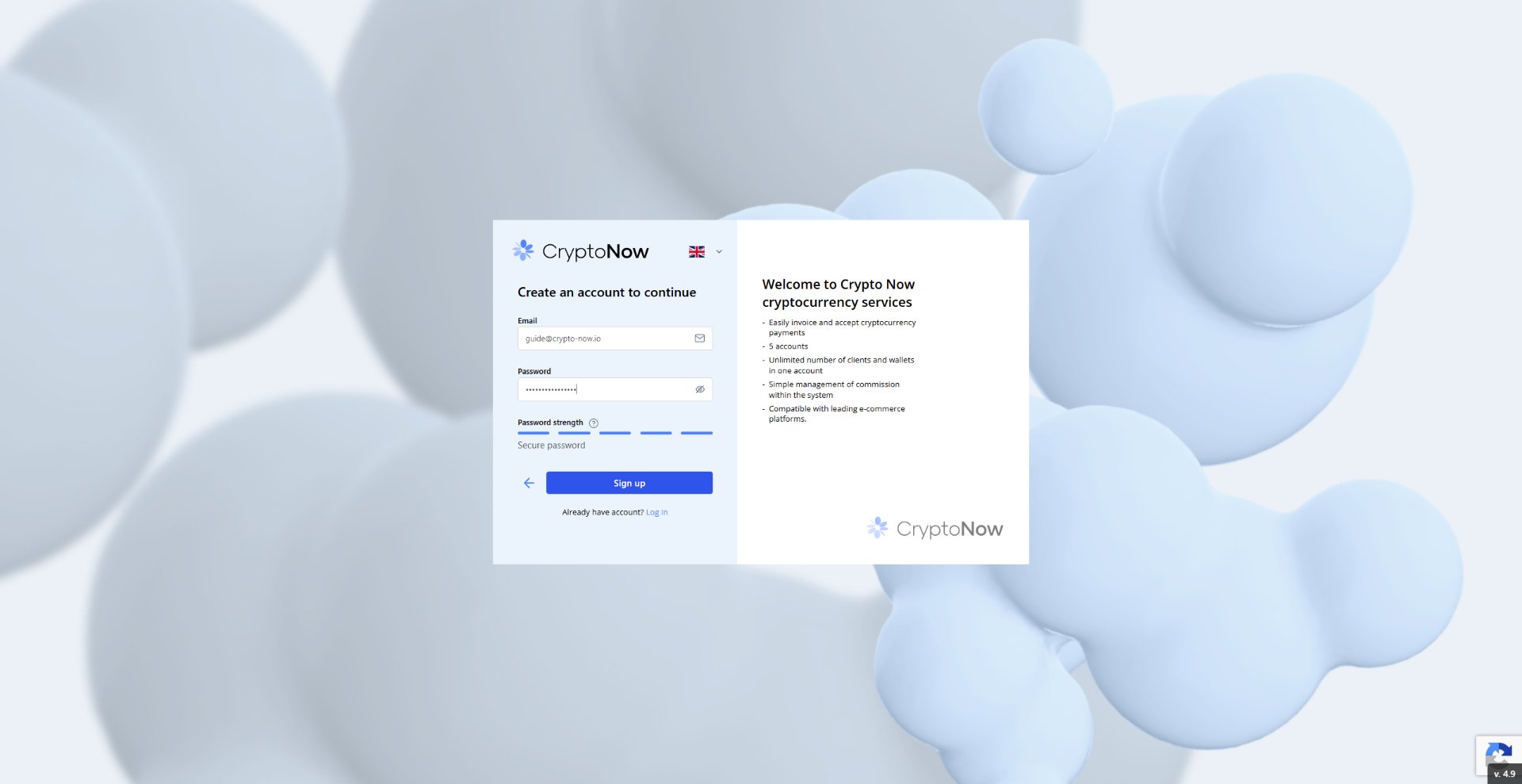 Click **Sign up**. CryptoNow confirms the account was created and asks you to
activate it by confirming your email.
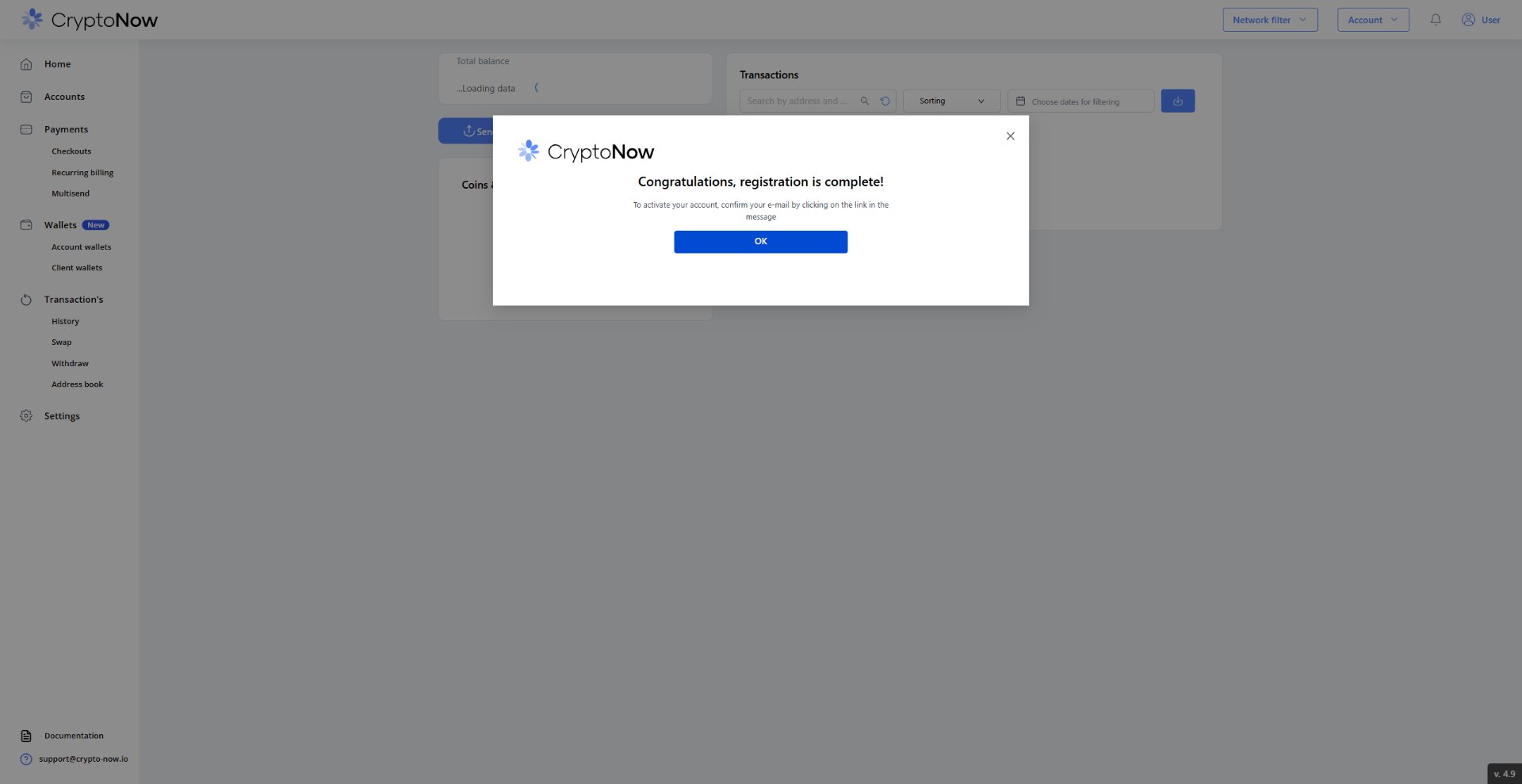
Click **Sign up**. CryptoNow confirms the account was created and asks you to
activate it by confirming your email.
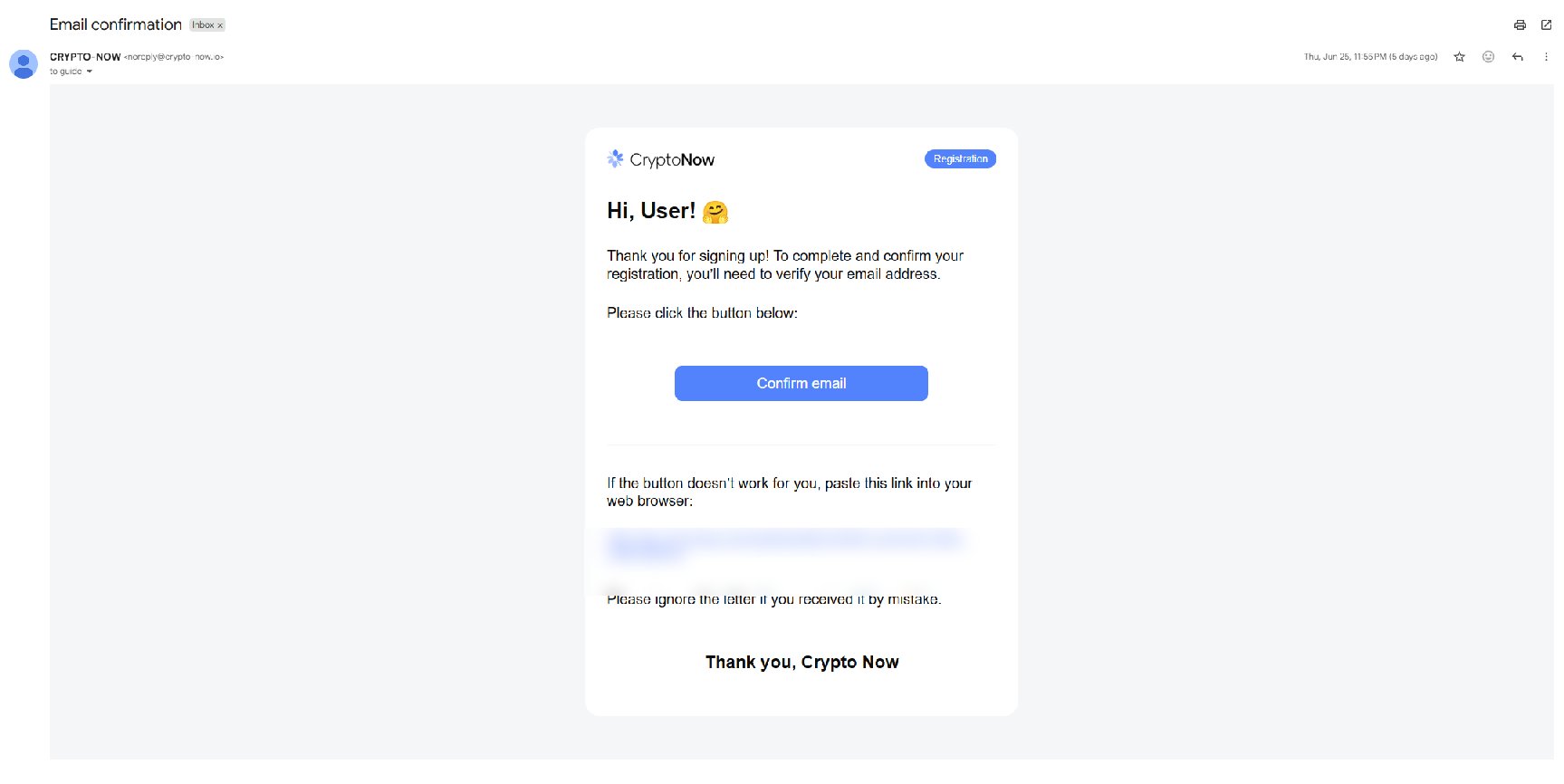
 Open the **Email confirmation** message from CryptoNow and click **Confirm
email**. Your account isn't active until you do this.
Open the **Email confirmation** message from CryptoNow and click **Confirm
email**. Your account isn't active until you do this.
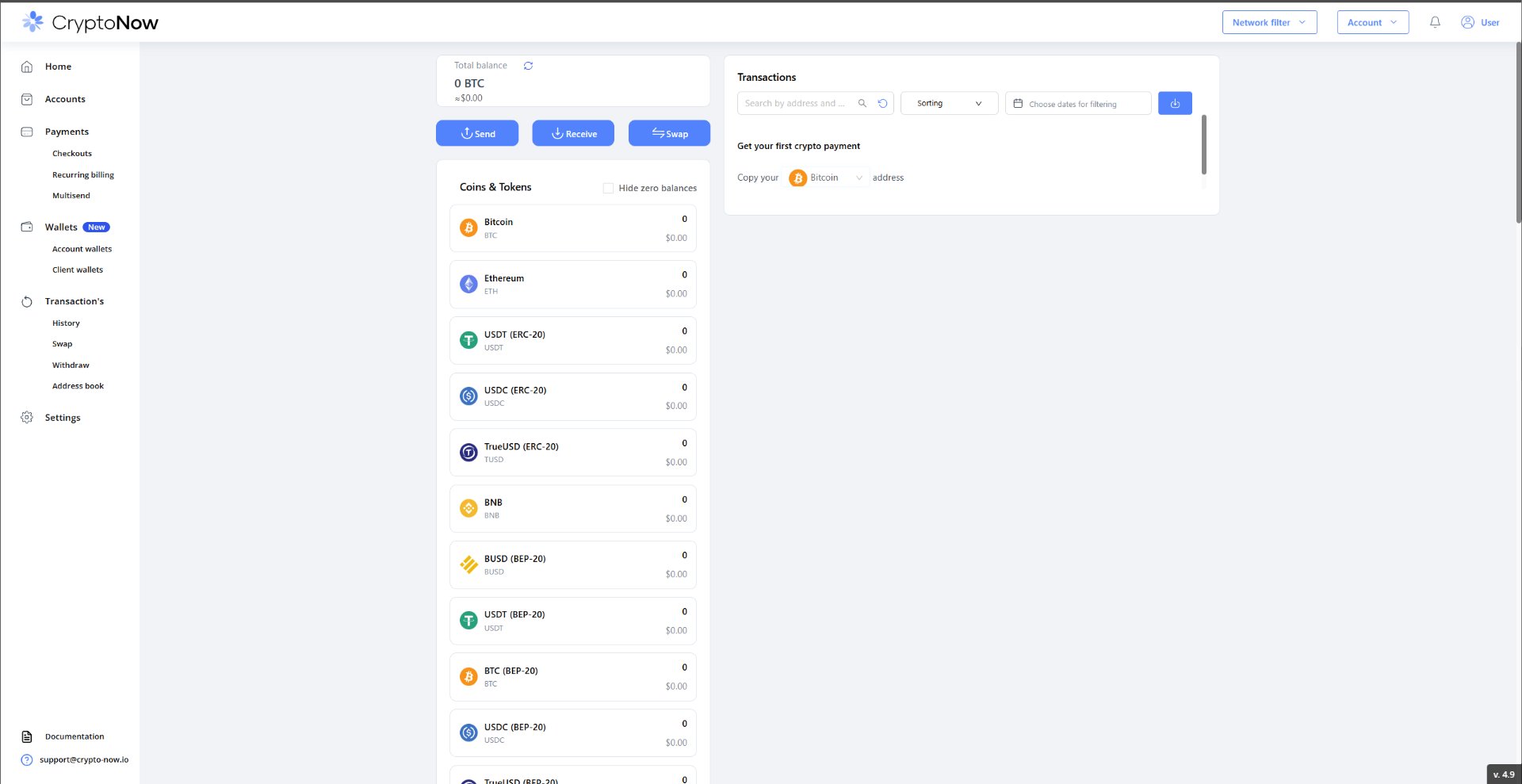
 You land on your dashboard — total balance, **Send / Receive / Swap**, and
your full list of supported coins and tokens, all at zero until your first
payment.
You land on your dashboard — total balance, **Send / Receive / Swap**, and
your full list of supported coins and tokens, all at zero until your first
payment.
 ## What's next
Two-factor authentication isn't forced at sign-up, but **email + Google
Authenticator 2FA are required before any money or key action** — withdrawing,
moving funds, viewing keys, or generating API keys. Set this up first in
[Secure your account](/secure-your-account).
## What's next
Two-factor authentication isn't forced at sign-up, but **email + Google
Authenticator 2FA are required before any money or key action** — withdrawing,
moving funds, viewing keys, or generating API keys. Set this up first in
[Secure your account](/secure-your-account).