> ## Documentation Index
> Fetch the complete documentation index at: https://guide.crypto-now.io/llms.txt
> Use this file to discover all available pages before exploring further.
# Secure your account
> Turn on email and Google Authenticator 2FA, save your backup phrase, and lock down API access — before you touch any funds.
CryptoNow doesn't force two-factor authentication at sign-up, but it's required
the moment you do anything that matters.
**Email 2FA and Google Authenticator are effectively mandatory.** Both must be
on before you can withdraw, move funds, view private or API keys, or delete a
wallet or account. Set them up now so nothing blocks you later.
Everything here lives under **Settings → Security**.
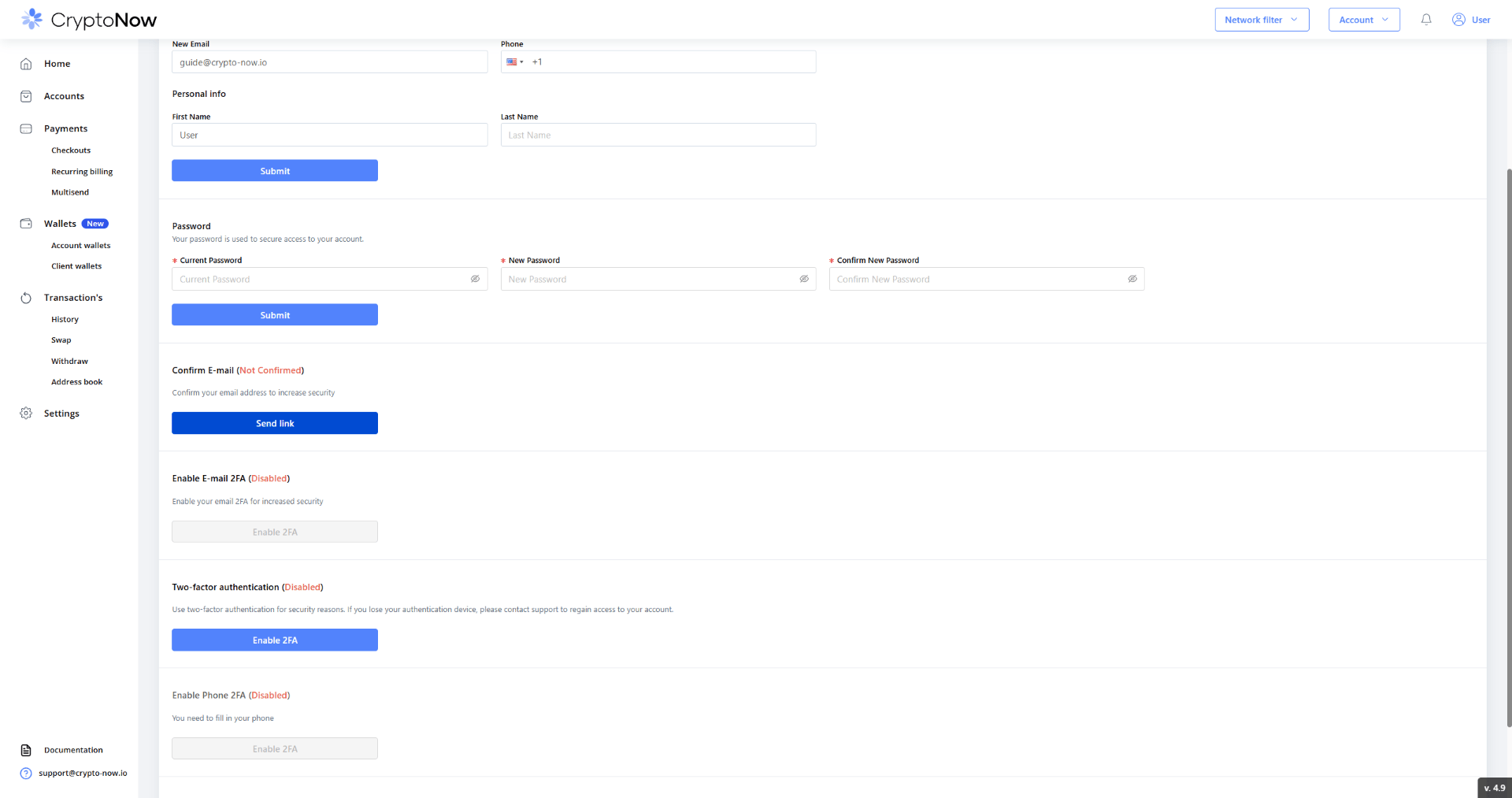 Under **Confirm E-mail**, click **Send link**, then open the message and
confirm. The status flips to **Confirmed**.
Click **Enable 2FA** under **Enable E-mail 2FA**. From now on, a code is
emailed to you for sensitive actions.
Under **Two-factor authentication**, click **Enable 2FA**, scan the QR code
with Google Authenticator (or any TOTP app), and enter the 6-digit code to
confirm.
Under **Confirm E-mail**, click **Send link**, then open the message and
confirm. The status flips to **Confirmed**.
Click **Enable 2FA** under **Enable E-mail 2FA**. From now on, a code is
emailed to you for sensitive actions.
Under **Two-factor authentication**, click **Enable 2FA**, scan the QR code
with Google Authenticator (or any TOTP app), and enter the 6-digit code to
confirm.
 Store your authenticator backup somewhere safe. If you lose the device,
regaining access means contacting support.
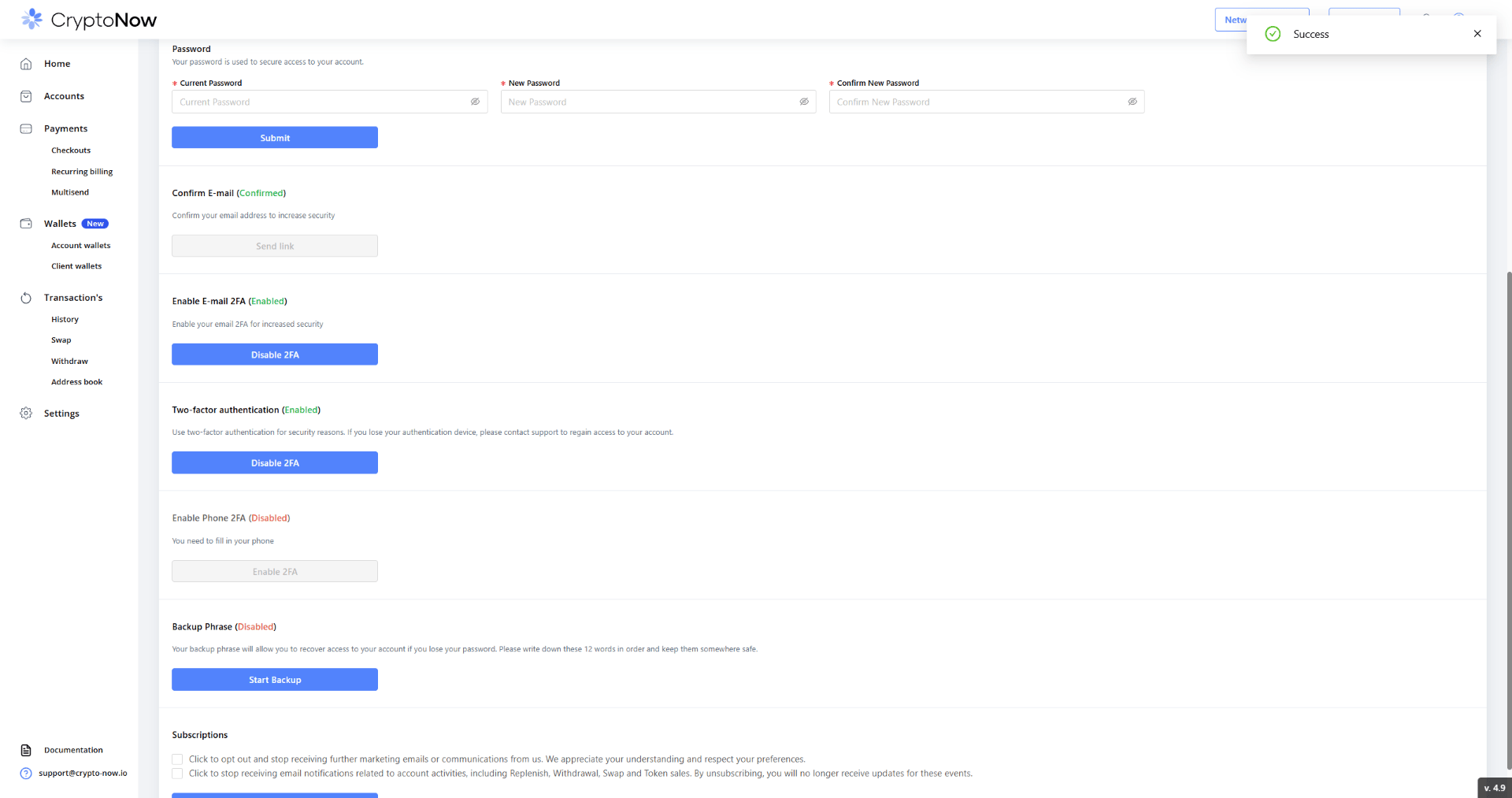
Under **Backup Phrase**, click **Start Backup** and write down the 12 words
in order, offline. This recovers your account if you lose your password.
Both factors on, your account looks like this:
Store your authenticator backup somewhere safe. If you lose the device,
regaining access means contacting support.
Under **Backup Phrase**, click **Start Backup** and write down the 12 words
in order, offline. This recovers your account if you lose your password.
Both factors on, your account looks like this:
 ## Restrict API access (for API users)
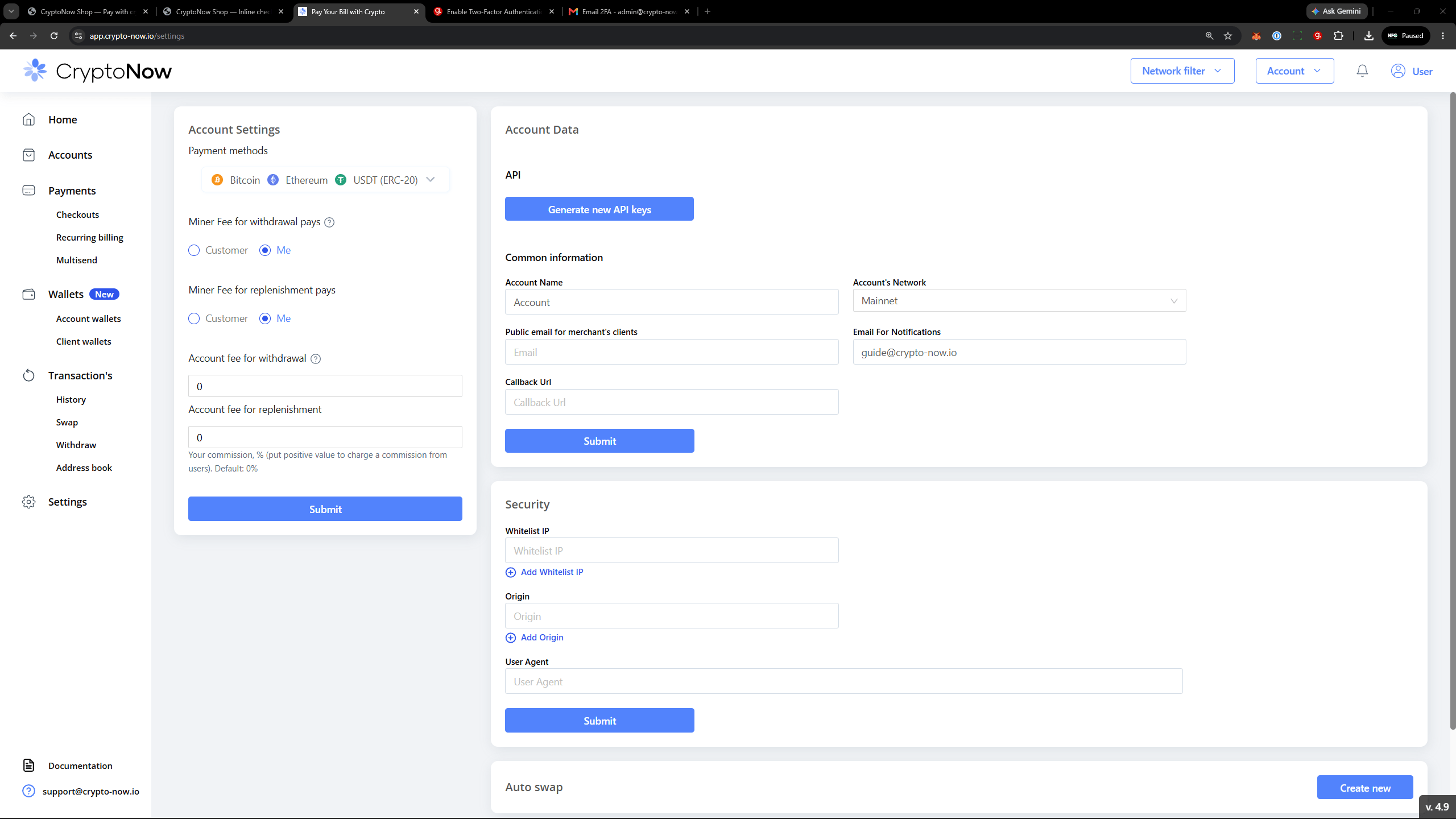
If you'll use the API, lock it down under **Settings → Security** by allowlisting
the **IP**, **Origin**, and **User-Agent** that may call it. Skip this if you're
not building an integration.
## Restrict API access (for API users)
If you'll use the API, lock it down under **Settings → Security** by allowlisting
the **IP**, **Origin**, and **User-Agent** that may call it. Skip this if you're
not building an integration.
 One thing **not** to touch: leave **autosign on**. It's on by default and
signs your checkouts, sweeps, and swaps automatically — turning it off breaks
those flows.
One thing **not** to touch: leave **autosign on**. It's on by default and
signs your checkouts, sweeps, and swaps automatically — turning it off breaks
those flows.