> ## Documentation Index
> Fetch the complete documentation index at: https://guide.crypto-now.io/llms.txt
> Use this file to discover all available pages before exploring further.
# Swap your crypto
> Exchange one cryptocurrency for another straight from your account wallets, settled through an exchange partner. Mainnet only.
Swap lets you exchange a currency you hold for one you need, without leaving CryptoNow. Funds move out of one account wallet and the exchanged currency lands back in another.
Swap runs on **mainnet only**. If you open it on a testnet network, you'll be prompted to switch before you can continue.
The destination-currency wallet must already exist before you swap. If you don't have a wallet in the currency you want to receive, create it first under **Account wallets**.
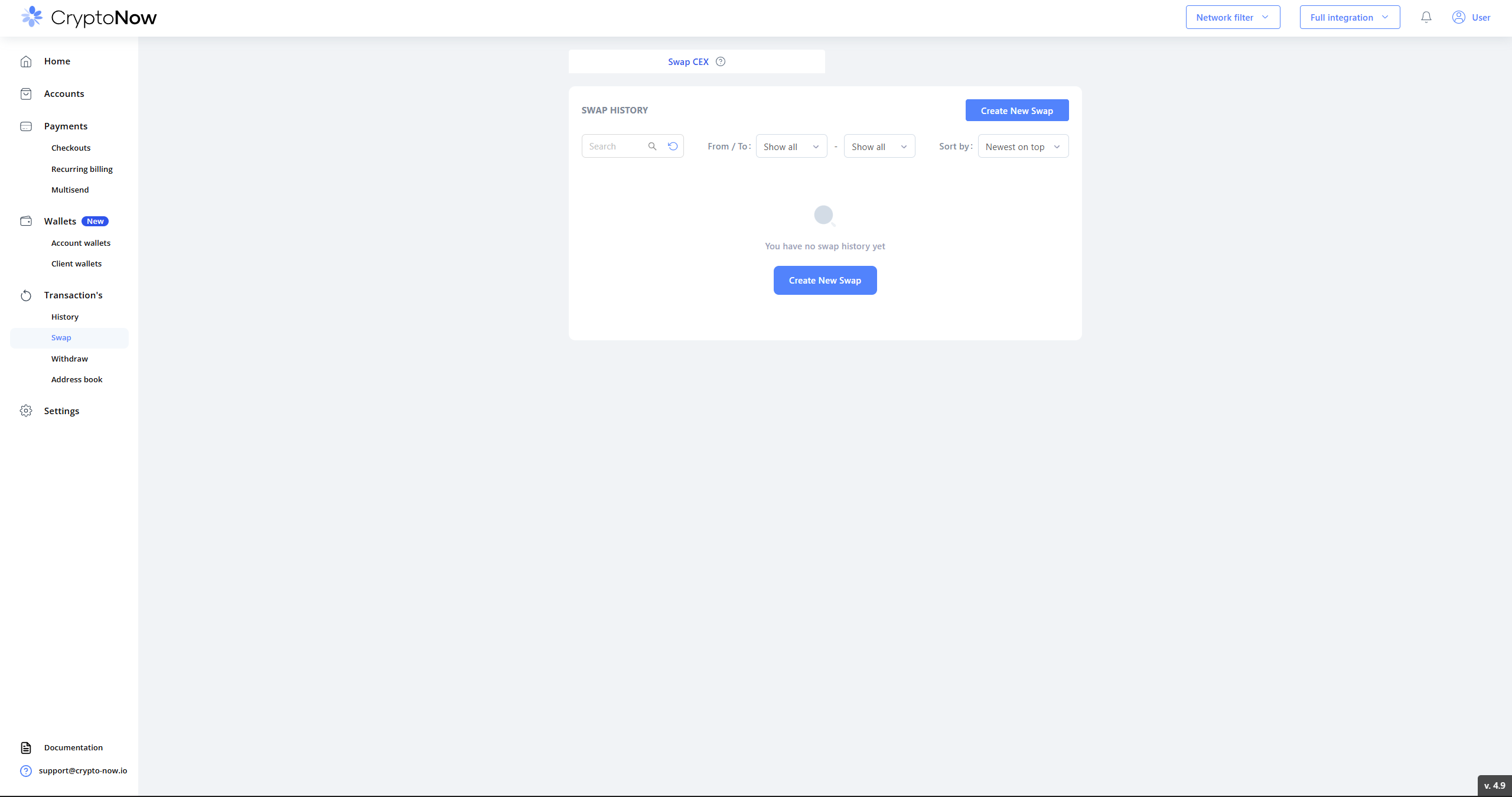
Go to **Transaction's → Swap** and select **Create New Swap**. The first time, your swap history is empty.
 In **YOU SEND**, enter the amount and pick the currency to spend. In **YOU GET**, pick the currency to receive — the estimated amount fills in automatically. **MAX** fills in the largest amount you can swap from that wallet after fees.
 Before you go further, the **Total** line itemises the full cost: the amount, the network **Miner Fee** (paid in the source network's native coin), and the **System Fee**. The exchange partner's rate is applied on top when you view offers.
 Select **View offers**. Each offer shows the **Rate**, **ETA**, and a **KYC Risk** indicator. Pick one and select **Exchange**.
 The summary confirms the exact send and receive amounts, the **exchange rate**, the **Partner**, and the rate **Type** — **Fixed** (rate locked for a short window) or **Floating** (final amount can move with the market).
 Enter the code from your Google Authenticator and select **Confirm**. If the locked rate expires while you're confirming, use **Update rate** and try again.
 You'll see a confirmation that the swap was processed.
 The swap appears in **Transaction's → History**, first as **Pending**, then **Done**. Expand it to see the Payment ID, addresses, Miner Fee, System Fee, and on-chain hash. The exchanged currency arrives in your destination account wallet as a **Replenishment** entry.

 On a **Floating** rate the amount you receive can change between confirmation and settlement. Choose **Fixed** if you need the quoted amount guaranteed within the partner's time window.
**Worked example.** 5 USDT (ERC-20) → ≈0.00311 ETH via *sideshift* on a fixed rate. The Total line showed a miner fee of ≈0.0000226 ETH and a System Fee of 0.05 USDT; the received ETH landed in the Ethereum account wallet as a Replenishment.
On a **Floating** rate the amount you receive can change between confirmation and settlement. Choose **Fixed** if you need the quoted amount guaranteed within the partner's time window.
**Worked example.** 5 USDT (ERC-20) → ≈0.00311 ETH via *sideshift* on a fixed rate. The Total line showed a miner fee of ≈0.0000226 ETH and a System Fee of 0.05 USDT; the received ETH landed in the Ethereum account wallet as a Replenishment.